Quick Start & How it Works
1. Start the Proxy Server
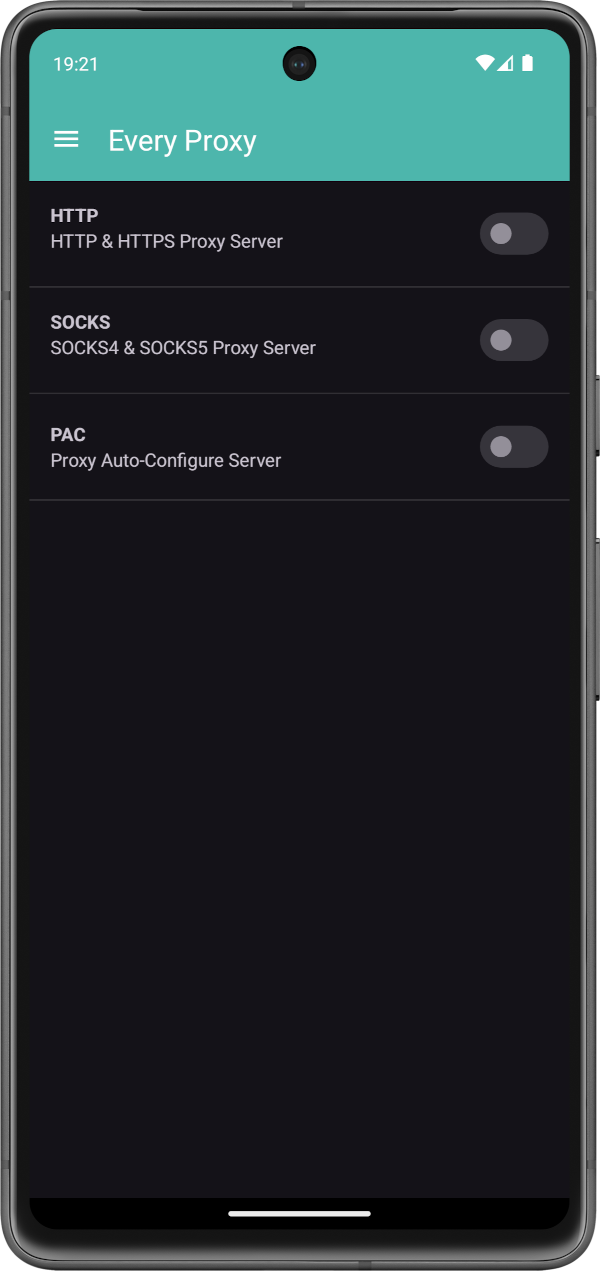
To begin, open Every Proxy and use the toggle on the home screen for your desired protocol.
- HTTP Proxy: Standard web traffic (HTTP/HTTPS).
- SOCKS Proxy: Versatile TCP routing (SOCKS4/5).
- PAC Server: Automated configuration for secondary devices.
Once active, a notification will appear in your system tray. Tap it to return to the app quickly.
2. Identify Connection Details
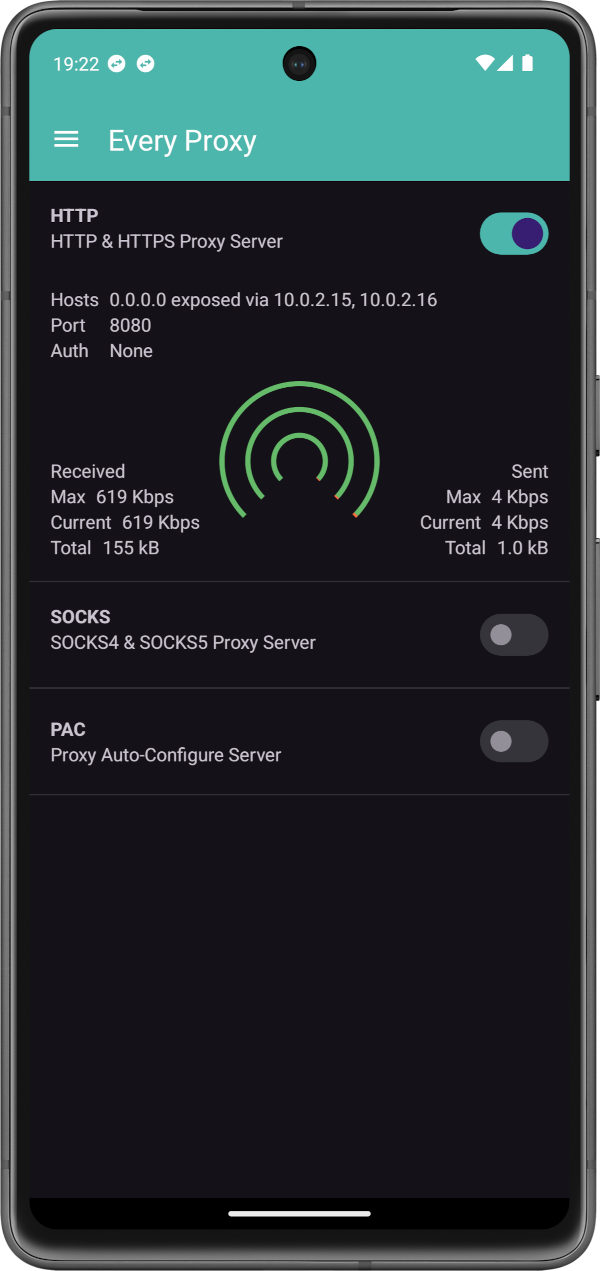
Once a proxy is toggled ON, two cards will appear on your home screen. A Proxy Details card showing you the IP the proxy is bound to along with the port and an IP Addresses card showing you all the IP Addresses currently assigned to your device.
- Host: The IP address your other devices will connect to.
- Port: The listening port (default 8080 or 1080).
- Traffic: The green (received) and red (sent) graphs show real-time throughput.
 Pro Tip
If your phone is connected to multiple networks (e.g., Wi-Fi and a VPN), the card may show multiple IP addresses. Usually, the address starting with 192.168.x.x or 10.x.x.x is the one you need for local devices.
3. Edit & Customize

Need to change the port or set a password? Tap the Edit Icon.
- IP Binding: Use
0.0.0.0to listen on all interfaces. - Authentication: Set a username/password for secure environments.
- Auto Start: Enable this to ensure Every Proxy launches on device boot.
4. Configure Your Client Device
Enter the Host IP and Port from Every Proxy into the proxy settings of your laptop, console, or tablet.
Crucial: Network Requirement
The client device and your Android device must be on the same local network (e.g., the same Wi-Fi or the Android device's Hotspot) for the connection to establish.
Developer Tools
Having trouble with client connections? The Developer Level upgrade adds a real-time Session Log and Connections Dialog to help you debug handshakes and monitor active sockets. Learn more about Developer Features
5. Navigating the App
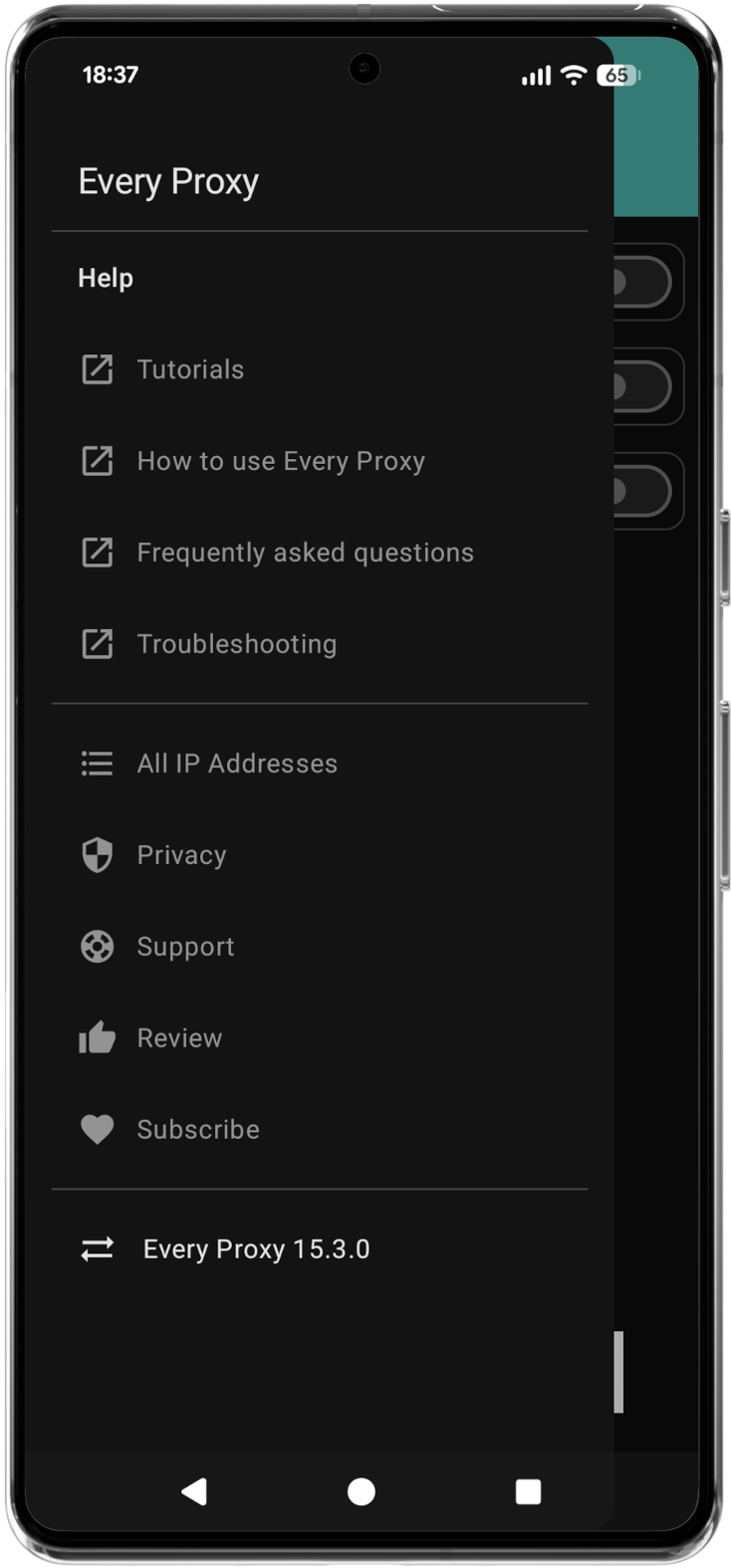
The Main Menu serves as the central hub for accessing advanced developer tools and configuring global app settings.
To open the navigation drawer, tap the Menu icon (three horizontal lines) in the top-left corner of the home screen.
Technical Deep Dive: How it Works
Every Proxy operates entirely in User Space—no root required. It acts as a TCP Relay:
- Inbound: Accepts connections from your client device.
- Negotiation: Performs protocol handshakes (HTTP/SOCKS).
- Outbound: Establishes a TCP connection to the destination server using the phone's active internet (Wi-Fi or Mobile Data).
- Relay: Forwards traffic bidirectionally until the connection is closed.
- End-to-End Encryption: For HTTPS/TLS traffic, Every Proxy does not terminate or inspect the connection. Encryption remains between the client and the destination server.
- Authentication: Supports Basic Authentication (HTTP) and Username/Password (SOCKS5).
- Privacy: Raw TCP streams are forwarded without inspection or alteration of application data.
If you use a Per-App VPN (e.g., WireGuard), Every Proxy forwards traffic to the Every Proxy Network Bridge via localhost. The Bridge then establishes the outbound connection, allowing the traffic to follow your VPN's specific routing rules.
Configuration Options
Proxy configurations may be adjusted via the Edit Icon.
| Feature | Description |
|---|---|
| IP Binding | Bind to a specific IP or 0.0.0.0 (all interfaces). Note: Binding to 0.0.0.0 ensures the proxy stays on even if network IPs change. |
| Custom Ports | We recommend using ports 1025–65535 to avoid root permission restrictions. |
| Power Save | Enable this to switch off the proxy when the bound IP is no longer assigned. |
| Auto Start | Enable this to automatically launch the proxy server when your Android device boots up. |
| Auth | Secure your proxy with a username and password. Required for public or shared network environments. |
| Network Bridge | Enable this to route the Every Proxy Traffic via the Every Proxy Network Bridge. |
Power Saving Note
When bound to a specific IP, the proxy may switch off if that IP is lost to conserve battery. Use the 0.0.0.0 binding for maximum uptime.