Notifications Guide
Every Proxy and the Every Proxy Network Bridge use persistent notifications to keep you informed of your proxy status and to ensure the Android system maintains a stable background connection.
Why Enable Notifications?
Notifications serve two critical purposes:
- Process Protection: A persistent notification tells the Android OS that Every Proxy is a "Foreground Service." This prevents the system from killing the app to reclaim memory.
- Diagnostic Value: The notification is often the only place where error messages are displayed if a service fails to start.
How to Enable Notifications
To ensure you can monitor your proxy status and maintain a stable connection, follow these steps:
- Go to Settings → Apps.
- Select Every Proxy.
- Tap Notifications.
- Ensure the "Allow notifications" toggle is ON.
Important: If you are using the Every Proxy Network Bridge, you must repeat these steps for that app as well.
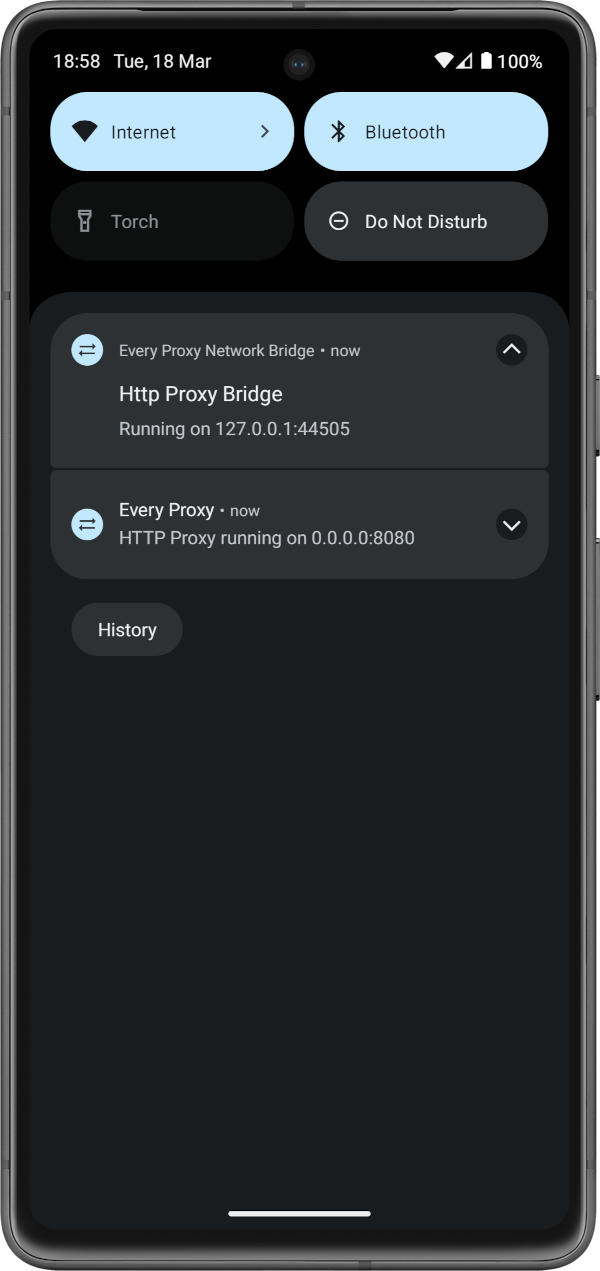
Troubleshooting with Notifications
The notification remains active even if a service fails, providing essential diagnostic information.
Network Bridge Failure
In some cases, the Network Bridge may fail to start (for example, if the required port is already in use by another app).
When this happens, the service may stop, but a notification will remain in your drawer containing a specific error message. Before clearing your notifications, check this message to determine why the Bridge could not initialize.
Understanding the Status
When a proxy is running successfully, the notification will display:
- Protocol Type: (e.g., HTTP, HTTPS, or SOCKS).
- IP Address: The address your client devices should connect to.
- Port Number: The specific port the proxy is listening on.
IP Address Changes
If the IP address in the notification changes (common when switching from Wi-Fi to a Mobile Hotspot), you must update the settings on your client devices to match the new address shown in the notification.
Notification Categories
On modern Android versions, you can fine-tune your experience:
- Service Status: Displays the active IP and Port. (Highly Recommended)
- Informational: Updates regarding configuration changes.
If you find the notification icon in your status bar distracting, you can set the notification category to "Silent" or "Minimized" in your Android system settings. This keeps the service running in the foreground but hides the icon from the top of your screen.